
Email Deliverability Issues and How to Fix Them

Your sending tool says delivered. Opens look passable. Replies are zero, and nobody booked a meeting.
That gap is where most email deliverability issues live. Delivered, inboxed, and visible are three different outcomes, and fixing the wrong one wastes days. Start by naming which outcome failed, then change copy, lists, or domains only after you’ve proved it.
Match Your Symptom to Its Likely Cause
A campaign can look healthy in the sending tool and still produce nothing. The server accepted the message, so your dashboard counts it as delivered, but the recipient never saw it in a place where they’d read it.
That’s not a small edge case. Validity’s benchmark reported that 83.5% of legitimate marketing emails reached the inbox worldwide in 2024, with 6.7% going to spam and 9.8% missing after being blocked or deferred. Roughly one in six legitimate messages didn’t get inbox placement. For B2B outreach, a filtered message can’t generate a reply no matter how good the offer is.
Start With What You Can See
Don’t rewrite the sequence yet. Match the visible symptom to one first check, and run that check before you touch anything else.
| Symptom | Likely cause | First check |
|---|---|---|
| Hard bounces above 2% on a fresh list | Unverified or stale addresses | Verify every address and remove invalid ones before the next send |
| Opens look normal, replies near zero, no complaints | Tab placement or silent filtering | Run a seed test across Gmail tabs and Outlook folders |
| Domain lands in spam at every provider | Domain or IP reputation damage, or a blocklist listing | Check blocklists and domain reputation for the sending domain |
| Complaints spike after a new list or tool | Poor targeting or a purchased list | Split complaints by list source and by campaign |
| Problems start after a DNS or vendor change | Broken DKIM selector, SPF lookup limit or unsigned third-party sender | Compare DNS records before and after the change |
| Only one provider affected, such as Outlook | Provider-specific filtering or reputation signal | Compare seed placement by provider and check Microsoft SNDS |
Hard bounces on a fresh list usually mean the addresses were never verified, so verification comes before another send. Soft bounces and deferral codes point the other way, toward throttling, and the right move is slower volume while you read the error text instead of pushing through it.
Healthy opens with zero replies and no complaints is the trickiest row. It often means tab placement or silent filtering, not weak copy, and you won’t separate those two without a seed test.
One Symptom, One Check
A domain landing in spam at every provider points to broader damage. Check how domain reputation builds and breaks down alongside blocklist lookups, because a single provider problem and an everywhere problem need different fixes.
Authentication rejections are more specific. They usually mean a message failed SPF, DKIM, or DMARC checks, often from misalignment after a tool change, while complaints that spike right after a new list arrives usually point to targeting.
Working rule: Match one symptom, run its first check, and only then change anything else.
That discipline matters because deliverability depends on reputation, authentication, engagement, list quality, and complaints, not just whether mail left your system.
Run a Seed Test Before Changing Anything
Run this before you edit a subject line, rotate a DKIM key, or buy a new domain. Without it, you’re guessing whether low replies come from copy or placement.
The Procedure
- Build the seed list: Use at least one account each at Gmail, Outlook, and Yahoo that you control.
- Send the live campaign: Send the live version from the same domain and mailbox used for outreach, not from a test tool with different infrastructure.
- Record placement: Note whether each seed lands in the primary inbox, a Gmail tab such as Promotions or Updates, spam, or goes missing.
- Compare by provider: Line up that placement against reply and click data for the same provider over the same send window.
- Change one variable: Repeat the seed test after that single change and wait 48 hours before judging the result.
If seeds land in the inbox and replies stay flat across providers, you’ve got a copy or targeting problem. If seeds land in spam or tabs, it’s a placement problem, and copy edits won’t fix it.
Keep a log for every run with the date, sending domain, variable changed, and placement per provider. That log becomes your baseline, so the next incident starts from evidence instead of memory.
Metrics and Thresholds to Track Each Week
The complaint rate is the number to watch first. Mailbox providers act on it directly, and it’s the fastest way a workable domain turns into a filtered one.
Placement measurement matters just as much. Validity reported a global inbox placement rate of 84.8%, with 6.1% landing in spam and 9.1% missing entirely. A single delivery rate hides that split, because accepted mail can still sit in a Gmail tab where nobody reads it.
Weekly Bands to Act On
These are working thresholds from practice, not official provider guarantees. Treat each band as a defined action, not a suggestion to look closer.
| Metric | Healthy | Watch | Act now |
|---|---|---|---|
| Spam complaint rate | Under 0.1% | 0.1% to 0.3% | Above 0.3% |
| Hard bounce rate | Under 1% | 1% to 2% | Above 2% |
| Gmail Postmaster domain reputation | High | Medium | Low or Bad |
| Seed inbox placement across Gmail, Outlook and Yahoo | Above 85% | 70% to 85% | Below 70% |
| Gmail Promotions tab share of seed placements | Low minority of seeds | Rising share across runs | Above 60% |
Each band has a defined response. Under 0.1% complaints, keep sending while you investigate. Between 0.1% and 0.3%, cut volume by about 30% and isolate the segment or campaign generating complaints before the next send. Above 0.3%, stop and fix first, because continued volume usually makes filtering worse.
Postmaster reputation follows the same escalation. High and Medium are workable. Low means pause the affected domain and its segment while you diagnose the cause. Bad means quarantine the domain, stop all sends through it, and move traffic to a backup domain before requesting delisting.
Why Blended Averages Mislead
Delivered, inboxed and visible are three different outcomes. A message can be accepted, placed in Promotions, and never read. Comparing seed placement against reply rates per provider tells you whether weak replies reflect the message or where it landed.
Record every number per sending domain. One weak mailbox hidden inside a healthy blended total will keep damaging the program while your dashboard looks fine.
How to Fix Authentication in the Right Order
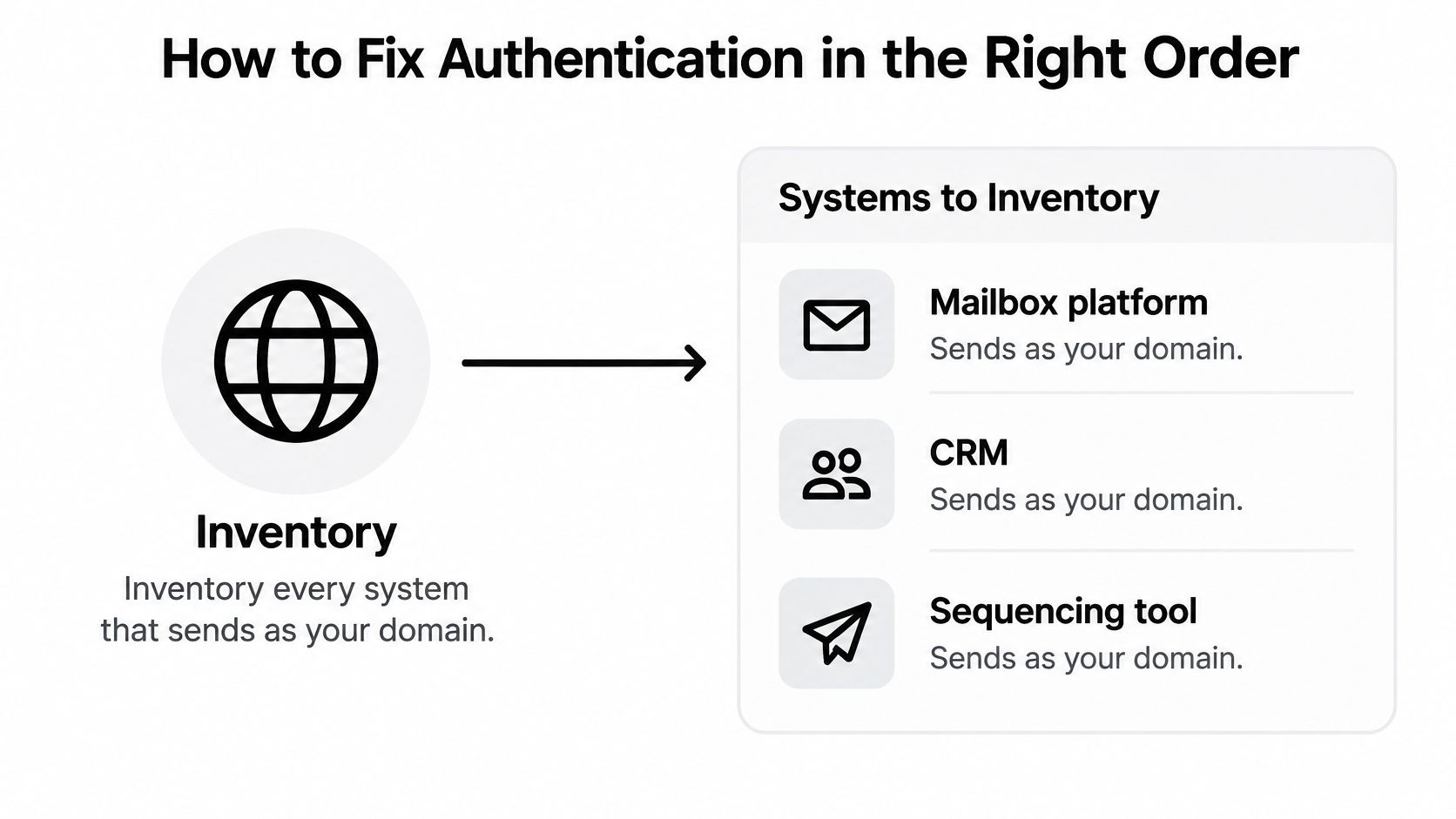
Fix authentication in sequence, because each step depends on the last. Skipping the inventory is how teams publish clean records for one platform while another tool keeps sending unsigned mail as their domain.
The Order That Works
- Inventory every sender: List the mailbox platform, CRM, sequencing tool, transactional mail, and any forwarding service that sends as your domain.
- Publish SPF per domain: Add each legitimate source and count DNS lookups so the record stays within its limit.
- Set up DKIM for each sender: Generate a unique key per system, publish it, and confirm the signature passes in a test message’s headers.
- Publish DMARC with reporting: Start at a monitoring policy, review aggregate reports, and tighten to quarantine only after legitimate mail passes consistently.
- Check alignment: The visible From domain must align with the organizational domain of SPF or DKIM, not just pass in isolation.
- Verify in Postmaster Tools: Review authentication, reputation, spam rate, and delivery errors daily during ramp-up and after any change.
That order follows Google’s guidance that unauthenticated mail can receive temporary or permanent failures or spam placement, and that incomplete DMARC can trigger rate limiting. Postmaster Tools is where you confirm whether the records you published pass in production.
If you want the protocol mechanics in more depth, the breakdown of SPF, DKIM, and DMARC authentication protocols covers how the three records interact. Teams tightening the security side in parallel can also strengthen your company’s email defenses so authentication work supports broader protection, not just placement.
Two Pitfalls That Break Good Setups
- Only the main platform is authenticated: The CRM and outreach tool send unsigned, so part of your volume fails even though the primary system looks correct.
- SPF is treated as enough: Forwarding can break SPF, while DKIM gives you a more durable authenticated identity that survives that path.
Correct DNS removes one class of failure. It doesn’t guarantee placement.
Engagement, list quality, content, and complaints still decide where authenticated mail lands. That’s the trade-off to accept early, because teams that expect DNS alone to solve email deliverability issues stop investigating too soon.
Infrastructure Settings and a Safe Ramp Schedule
A fresh mailbox must never jump straight to full volume. Going from zero to a heavy daily load looks like a spam run, and providers respond accordingly.
Send cold outreach from separate sending domains that are close variants of the brand, not your main website domain. That separation protects the primary domain if a campaign misfires, and the same isolation logic applies when you weigh shared IP against dedicated IP sending for larger programs.
Settings That Protect the Domain
- Mailboxes per domain: Keep two or three mailboxes on each sending domain so one mailbox problem doesn’t look like a domain pattern.
- Tracking setup: Use a dedicated tracking domain and avoid URL shorteners, which inherit other senders’ reputation.
- Unsubscribe handling: Include one-click unsubscribe on bulk mail so uninterested recipients have an exit besides the spam button.
- Consistent identity: Keep sender name and signature stable across mailboxes, because frequent identity changes look like evasion.
Ramp by Gates, Not by Calendar Alone
| Week | Cold sends per mailbox per day | Advance only if |
|---|---|---|
| Week 1 | 0 (warm-up only) | Warm-up mail reaches the inbox with no spam folder hits |
| Week 2 | 10 to 15 | Complaints under 0.1% and hard bounces under 2% |
| Week 3 | 20 to 30 | Postmaster domain reputation High or Medium |
| Week 4 | 35 to 45 | Complaint, bounce, and reputation gates still hold |
| Week 5 and later | About 50 | All gates held for the previous two weeks |
Cap each mailbox at about 50 cold sends per day and spread sends across business hours in the recipient’s time zone. If a gate fails, drop back one week rather than pausing the whole program.
A failed gate costs a week. Pushing through it can cost the domain.
Clean Your List and Keep Complaints Low
A team buys a list, targets two job titles, and watches complaints climb past the danger line within a week. The copy stayed the same. The list source did the damage.
The fix is the same principle behind any permission-based list, whether it’s a B2B outbound segment or an effort to build a quality Kickstarter email list: every address should trace back to a person who asked for the mail.

Run every list through this sequence before the first send:
- Verify each address individually. A syntax check catches typos but can’t confirm the mailbox exists. Use an email list cleaning service that pings the mailbox, not a regex pass.
- Flag catch-all domains. They accept mail at any address, so verification can’t prove a real inbox sits behind it. Send to them last, in small batches, and cut any that bounce.
- Remove role addresses. Shared inboxes like info@ or sales@ rarely opted in and generate complaints out of proportion to their volume.
- Enforce a bounce rule. Delete any address that hard-bounces and add it to the suppression list permanently; two soft bounces in a row earns the same treatment.
Suppress past unsubscribes and complainers across every tool and sending domain, not only the current campaign. Tag each send by list source and read complaints per source, because a blended total hides the one segment causing the spike.
The stakes are concrete. Since February 2024, Gmail and Yahoo have required bulk senders to authenticate mail, offer one-click unsubscribe, and keep spam rates below 0.3%, and Google’s sender guidelines recommend staying below 0.1%. At that scale, a handful of complaints per thousand sends becomes an infrastructure risk.
Process unsubscribe requests immediately and put a short, honest opt-out line in every email. Recipients who can’t find the exit tend to reach for the spam button instead.
The walkthrough below covers reading a post-send complaint spike by list source and moving complainers onto the suppression list before the next send goes out.
Copy and Engagement Signals That Affect Placement
Copy matters, but it matters after placement is confirmed. Review these signals in the order you’d check a live message.
Message-Level Checklist
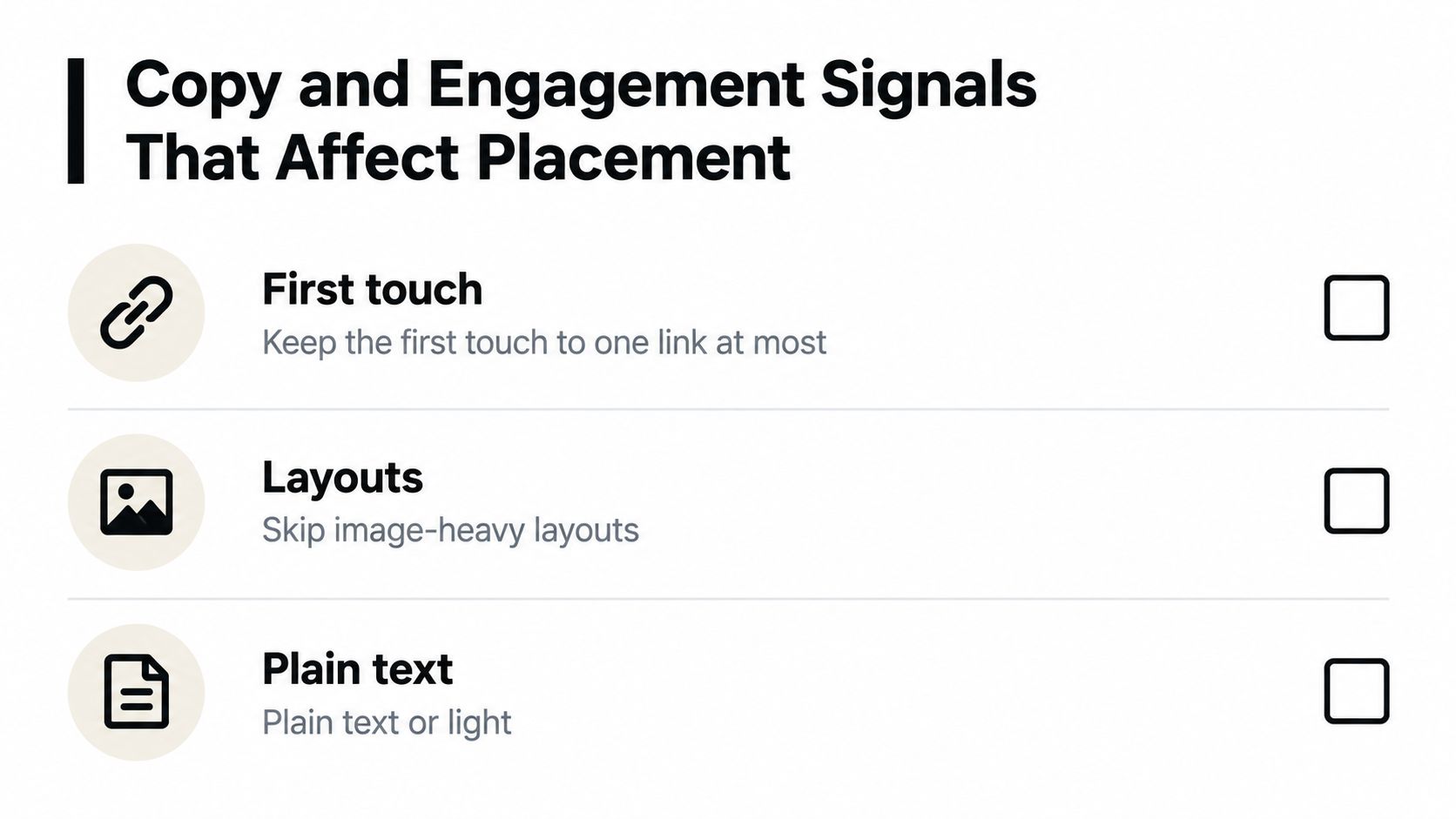
- Links and layout: Keep the first touch to one link at most, skip image-heavy layouts, and favor plain text or light HTML for cold outreach.
- Subject line: Keep it under about 50 characters and name the recipient’s role or a specific trigger instead of a generic promise.
- Personalization: Use one concrete detail the recipient would recognize, such as a product launch or hiring post, rather than a first-name merge alone.
- Trigger language: Use promotional phrases sparingly, never in capital letters or with stacked punctuation.
- Single ask: Make one clear request per email, phrased so a one-word reply is easy.
- Consistent identity: Keep sender name, signature, and reply-to address stable across the sequence.
Engagement then compounds. Replies and clicks from the right people strengthen reputation, and tracking click-through relative to opens helps show whether readers act or merely glance. Sends to people who never respond do the opposite, so move non-responders out after the sequence ends.
If seed placement is healthy but replies stay flat across providers, copy is the problem.
That’s your separating test. Healthy seeds plus flat replies justify rewriting. Poor seeds mean you should fix placement first, no matter how weak the copy looks.
Escalate, Delist and Hand Off
One-time DNS setup isn’t enough when you run multiple domains, vendors, and changing volumes. Enforcement now includes temporary rate limits and SMTP rejection rather than only spam placement, which makes continuous monitoring and incident response part of normal operations. Intermittent forwarding failures, selector changes, and sudden volume spikes can all appear after a setup that looked finished.
Before anyone touches a domain, confirm which outcome is failing. Delivered, inboxed, and visible are three different states, and each level below only makes sense once you know which one broke. A delisting request fixes a blocklist. It does nothing for a complaint problem, and pausing a domain wastes days when the actual trigger is a dirty segment.
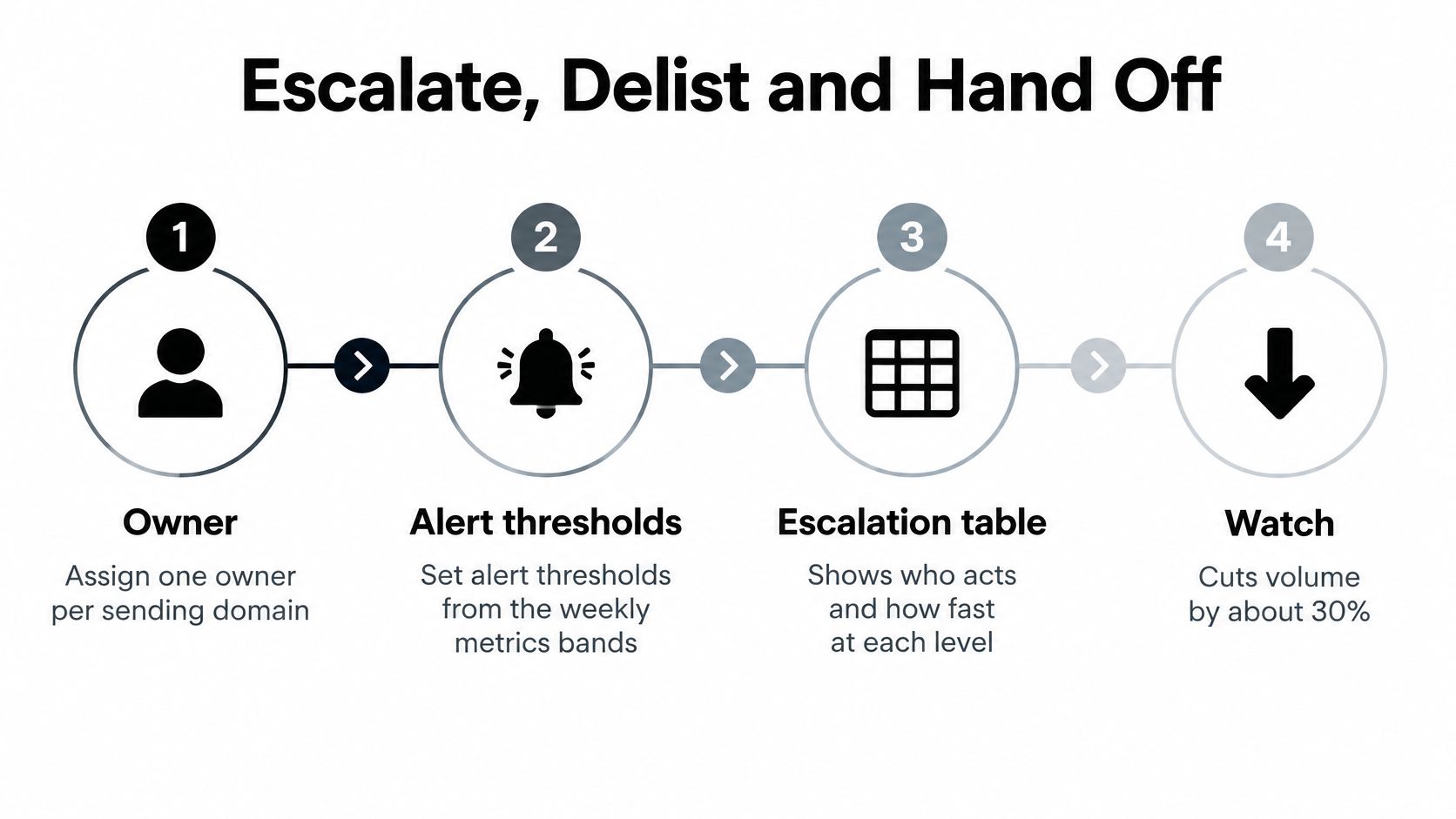
Assign one owner per sending domain and set alert thresholds from your weekly bands. Then act on the level, not on opinion.
| Level | Trigger | Action | Owner | Respond within |
|---|---|---|---|---|
| 1 Watch | Complaints 0.1% to 0.3% or hard bounces 1% to 2% | Cut volume by about 30%, re-verify the list segment | Campaign operator | Same business day |
| 2 Restrict | Complaints above 0.3%, Postmaster reputation Low, or hard bounces above 2% | Cut volume again, to roughly half, and pause only the segment or stream that caused it | Deliverability lead | Within 4 hours |
| 3 Pause | Blocklist listing or Postmaster reputation Bad | Pause the affected domain, shift sends to a backup domain, request delisting | Operations and IT | Within 24 hours |
| 4 Hand off | No recovery after 14 days at reduced volume | Bring in an outside specialist or pay-per-meeting provider | Sales leader | After 14 days |
Two mappings in this table deserve a second look. Postmaster reputation Low sits at Level 2 because the correct response is reduced volume while reputation recovers, with the offending stream isolated. Bad sits at Level 3 because the domain itself stops sending. Hard bounces above 2% land at Level 2 as well, matching the “Act now” band: throttle volume immediately and pull the segment driving the bounces before it drags the whole domain down.
Delisting and Rollback
For a blocklist listing, check the sending domain and IP, fix the cause first, then submit a request that states what changed. For example, say you removed the purchased list, suppressed complainers across all domains, and re-authenticated CRM sending with a unique DKIM key, then ask for review.
Write a rollback rule per domain stating which volume and segment return first. Correlate DMARC reports with bounce codes, complaint data, and volume changes so you can name which stream caused the drop.
If there’s no recovery after 14 days at reduced volume, compare hand-off options objectively. An in-house specialist gives you control, an agency gives you capacity, and an outside provider such as Fypion Marketing can take over infrastructure, copy, and monitoring on a pay-per-meeting basis. The sales leader should make that call, not the operator involved in the incident.
If your campaigns are delivered but not visible, Fypion Marketing can audit your sending domains, authentication, and placement by provider, then rebuild the infrastructure and monitoring needed to turn outreach into booked, qualified meetings. You don’t pay upfront fees or retainers, only for meetings that meet agreed criteria, so visit Fypion Marketing to start with a free consultation.